For Windows 11 PCs with more than one monitor

Move Windows notifications to the monitor you choose.

Keep notification popups off your game and out of your way. Pick a monitor and a corner for free. Pro adds per-app rules, searchable history and automation.

  • Windows 11 · 64-bit · Free forever
  • No account required · No app telemetry
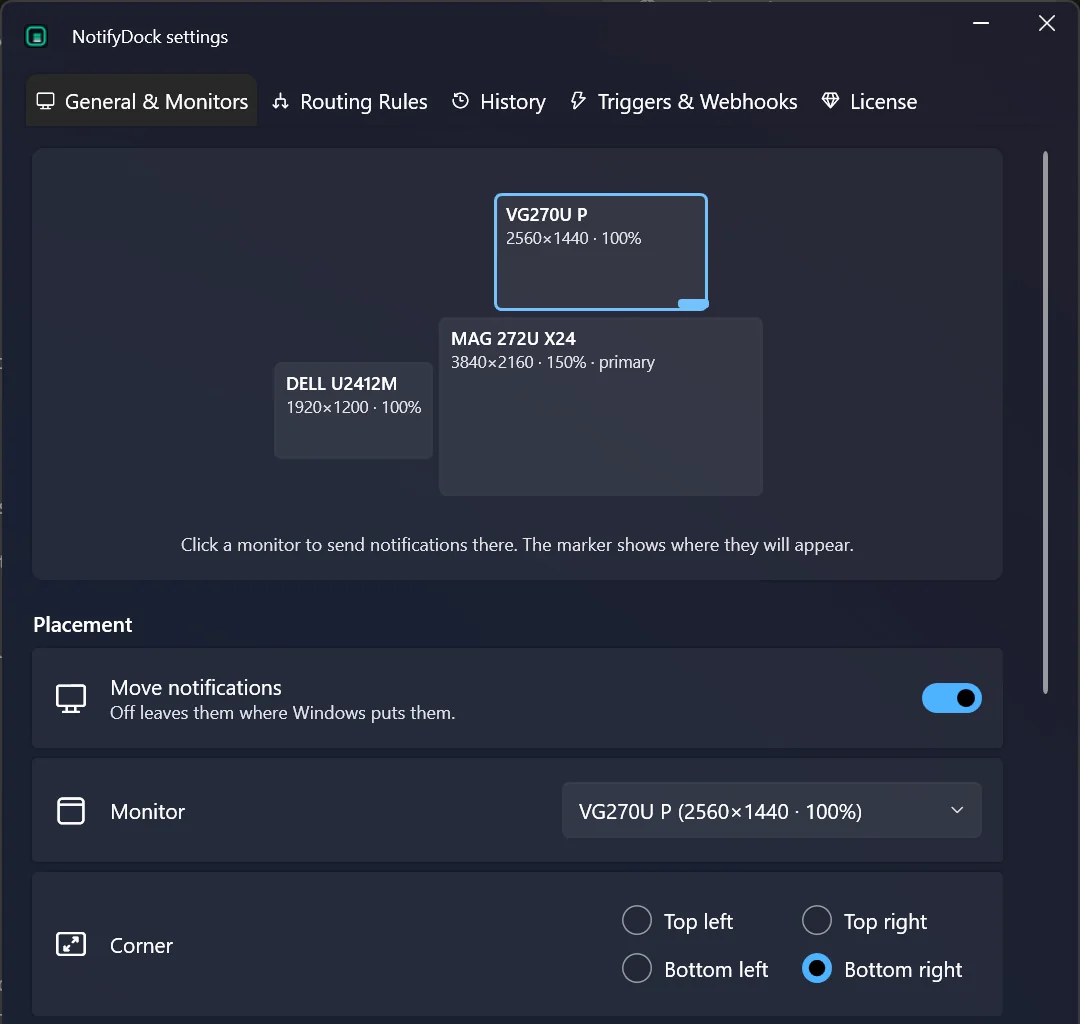
NotifyDock's settings window: a preview of three monitors with the target one highlighted, the Move notifications switch on, a Monitor list and Corner options with Bottom right chosen.
NotifyDock's settings window, captured on Windows 11.

Prefer a direct download? Download the installer (76.5 MB). It isn't code-signed yet, so Windows SmartScreen may warn you.

Download details and installation help
Version
1.0.1, released 19 Oct 2026 · release notes
Download
76.5 MB, .NET included
Installs
For your Windows account only, no admin prompt
Works with
Standard Windows notifications, not popups an app draws itself
SHA-256
c91dc75c25b2d997d1d8e5ef607dd43396b783d56d718985a0c41f119e4d160a

If SmartScreen shows “Windows protected your PC”, check the SHA-256 first (how), then choose More info → Run anyway.

Try it in your browser

Choose a monitor. Choose a corner. Send a test.

Watch where a test notification lands, then turn moving off to see where Windows would have put it.

This is a simulation that runs in this page. It doesn't read your notifications or ask for any permission.

Monitor 1 · 4K at 150% · game running

Monitor 2 · 1080p at 100%

Move notifications

Off shows the Windows default

Monitor
Corner

Monitor 2, bottom right is selected.

More options
Example app

Click-through

Clicks pass to the window behind

Technical details
// pick a monitor and a corner, then send a test notification

Features

The real Windows notification, in a better place.

NotifyDock moves Windows' own popup instead of redrawing it, so buttons, replies and sounds keep working.

Any monitor, any corner

Free

Mixed-resolution setup? Notifications land where you choose, even when your monitors use different scaling, like a 4K screen at 150% next to a 1080p one.

Fade them down to 10% opacity and turn on click-through, so a popup over your game never eats a click.

Discord on the side screen, everything else where it was

Pro

Give each app, word or pattern its own monitor and corner. Rules are checked in order and the first match wins; anything unmatched uses your Free placement.

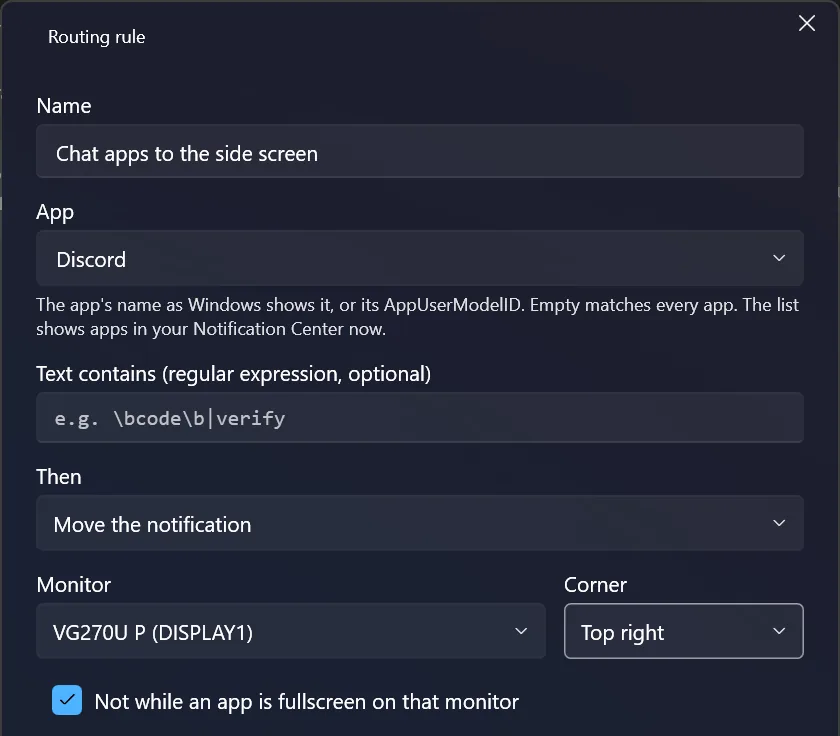
NotifyDock's routing rule editor: a rule named Chat apps to the side screen matches the app Discord and moves the notification to a chosen monitor's top-right corner, but not while an app is fullscreen on that monitor.
A routing rule in the real app.

Get back the sign-in code that vanished

Pro

Turn on history and search past notifications by app, title or text, kept only on your PC. When one carries a code, copy it with one click; it stays out of Windows clipboard history.

Bank · 19:41

Your sign-in code is 482913. It expires in 10 minutes.

Illustration with example notifications.
  • FreeLeave fullscreen games alone. One switch stops NotifyDock moving notifications onto a monitor where an app is fullscreen. Pro can set this per rule.
  • FreeRuns quietly. Start with Windows, pause from the tray, and nothing is left changed when it quits.
  • ProKeep the important ones on screen longer. Show matching notifications as NotifyDock's own cards, stacked, for as long as you set, with optional sound.
  • ProTurn a notification into an action. Send a matching one to Home Assistant, n8n or your own address, or run a local script. Commands stay off until you allow them.
How placement works

NotifyDock watches for the Windows shell's notification window with an out-of-context SetWinEventHook and moves it with SetWindowPos and SWP_NOACTIVATE, so focus never changes. It is PerMonitorV2 DPI aware: when a notification moves to a monitor with a different scale, its size is worked out at that monitor's DPI and placed against that monitor's work area.

Opacity and click-through use WS_EX_LAYERED and WS_EX_TRANSPARENT. The window's original style is restored on pause, on exit and, after a crash, at the next start.

How fullscreen detection works

NotifyDock checks SHQueryUserNotificationState and whether the foreground window covers the whole target monitor, which also catches borderless fullscreen. When it does, the notification stays where Windows put it.

How Pro reads notifications

Rules, history and webhooks read notifications through Windows' UserNotificationListener API, which needs notification access in Windows Settings, plus UI Automation to match the popup on screen. Overlay cards are WS_EX_NOACTIVATE windows, so they don't take focus. History is a local SQLite database in %AppData%\NotifyDock.

Check it fits your PC

  • Needs Windows 11, 64-bit. Windows 10 isn't supported.
  • Moves standard Windows notifications only. Popups an app draws itself, such as an in-game overlay, stay where they are.
Full compatibility details

Works with any number of monitors, with any mix of resolution and scaling, and with the standard notifications that slide in above the clock and also appear in the notification centre.

Can't move notifications Windows holds back. With Do not disturb on, or while you play fullscreen, Windows doesn't pop them up at all, so there's nothing to move. When several arrive at once, Windows pops up only the first.

The app names on this page are examples. Whether an app's notifications can be moved depends on whether it uses standard Windows notifications. The Free version is enough to check: send yourself one and see.
Free vs. Pro

Start free. Add rules and history with Pro.

Pro is one payment: no subscription and no account.

NotifyDock Free

£0 Free forever, not a trial

Get it from the Microsoft Store

or download the installer

  • Any monitor and corner, with edge distance
  • Opacity and click-through
  • Skip a monitor running a fullscreen app
  • Start with Windows, pause from the tray

No account, no key, no network connections.

NotifyDock Pro

£12 once · 3 PCs · all 1.x updates included

Buy Pro for £12

Everything in Free, plus:

  • Each app on its own monitor and corner (routing rules)
  • Find and copy a code after the popup has gone (history)
  • Important ones stay on screen as long as you set (overlay cards)
  • Notifications that trigger Home Assistant or a script (webhooks)

Unlocks in the app you already have; no second download. Works offline once activated.

How buying Pro works

  1. Pay £12 once at Stripe's secure checkout.
  2. Get your license key on the thank-you page and by email.
  3. Paste it into NotifyDock: settings → License tab → Activate.

No email? Check your junk folder, then contact support from the address you paid with. Moving to a new PC: see license help.

Compare every feature
NotifyDock Free compared with NotifyDock Pro
Feature Free £0 Pro £12 once
Move notifications to any monitor and corner
Opacity and click-through
Run at startup and pause from the tray
Skip a monitor running a fullscreen appOne switchPer rule
Per-app and keyword routing rules
Overlay cards: stacking, duration and sound
Searchable notification history and code copy
Webhooks and local commands
LicenseNo account, no key3 PCs · all 1.x updates · works offline once activated

Setup

Set up in about a minute.

  1. Install and open NotifyDock

    Run the installer. It installs for your Windows account only, so there's no admin prompt. NotifyDock lives in the system tray; click its icon to open settings.

    The installer isn't code-signed yet, so Windows SmartScreen may warn you. Check the SHA-256 before you run it, or install from the Microsoft Store instead.

  2. Choose a monitor and a corner

    Click a monitor in the preview, or pick one from the list, then choose a corner. You can add extra distance from the edge if you like.

  3. Send a test notification

    Make sure Move notifications is on, then click Send test notification. Windows notifications now pop up there.

15-second animation of the idea, not a screen recording. No sound.

Who makes it

Made by Vivaxo, in the United Kingdom.

NotifyDock is built and supported by Vivaxo. Questions about the app or your license go to [email protected], and a real person replies.

FAQ

Common questions.

Will it steal focus from my game, or upset anti-cheat?

Moving a notification never takes focus from your game. NotifyDock doesn't inject code into, open or read the memory of any game, and installs no driver. It moves only Windows' own notification popup, plus, in Pro, its own overlay cards.

We haven't tested it against specific anti-cheat systems, so we can't promise how each one will react. If you find a problem with a game, tell us.

Is the Free version a trial?

No. Free moves notifications to any monitor and corner for as long as you like, with no account, key or time limit. Pro is an optional upgrade for rules, history and automation.

What exactly do I get with Pro, and for how long?

One payment of £12 gets a license key for up to 3 of your PCs at a time, and every 1.x update. The version you have keeps working with your key; there's no subscription and nothing expires.

Pro unlocks inside the app you already installed. If you get a new PC, you can free your PCs and activate again.

How does Pro activation work?

Paste your key in settings → License and click Activate. NotifyDock contacts our license server once to activate, then works offline. When you're online it checks in about once a day, so a refunded or freed license switches off. Being offline never switches Pro off. Full details are in license help.

Does my notification history ever leave my PC?

No. History is off until you turn it on, then it's kept in a local database on your PC for as many days as you choose (1–365, default 30). NotifyDock has no app telemetry.

Two things can leave your PC: notifications matching a webhook you set up, which go straight to the address you chose, and, with Pro, your license key and a hashed installation ID for the license check. See the privacy policy.

Why does Windows warn me when I run the installer?

The installer isn't code-signed yet, and Windows SmartScreen warns about unsigned downloads it hasn't seen often. To check you have the genuine file, compare its SHA-256 with the one on the release page.

To avoid the warning, install NotifyDock from the Microsoft Store. It's the same app, and Pro unlocks in it with the same license key.

What happens if NotifyDock quits or I uninstall it?

Notifications go straight back to normal. NotifyDock restores the popup's original style when you pause or quit, and cleans up anything left over from a crash at its next start.

Try it on your own monitors.

Free forever for moving notifications. Pro is £12 once, for 3 PCs.